Welcome to Beadographer
Welcome to the Beadographer user guide. This guide explains the features of the current version of the app.
Beadographer lets you design patterns for beading projects. Create designs using seed beads, cylinder beads, or fuse beads. You can manage palettes, bead libraries, collections, and inventory, work from image files, and export PDFs with diagrams and word charts.
Beadographer has a free version and a membership version. The membership version includes these extra features:
- save your work for later
- export PDFs with diagrams and word charts
- manage your bead collections
- manage your inventory
To learn more about membership, read the about page.
Watch the Tutorials
Our video tutorials are a quick and easy way to learn how to use the app. You can find them on the Beadographer Youtube channel.
Join the Beadographer Common Room
The Facebook Group Beadographer Common Room is a place where users can connect, share designs and tips, and ask for advice.
Errors and Feature Requests
If you found an error in the app, or if you have a feature that you would like to see in a future version, you can contact us through the contact form.
Drawing And Editing
Choose a swatch, then use these tools to add or remove beads on the canvas.
While using Draw, Paint, Line, or Rectangle, hold Alt to use the eyedropper. In Draw mode, hold Shift to erase.
Draw
 |
The draw tool D is selected when a new project opens. Click on the canvas and beads will appear. Change bead style by clicking on a different swatch on the palette. |
Paint
 |
The paint tool P adds or changes entire regions of beads. |
Line
 |
The line tool L adds a line of beads. Click and drag on the canvas, then release to apply the line. |
Rectangle
 |
The rectangle tool R creates rectangles of beads. |
Erase
 |
The erase tool E will remove beads from the canvas. |
Selection And Navigation
Use these tools to move around the canvas, select beads, and pick a style from beads that are already in the design.
Move
 |
The move tool H pans the canvas. Drag on the canvas to change the camera view without changing beads. |
Selection Tools
The three selection tools are Marquee, Select, and Color Select. When you select beads with these tools, you can drag them around the canvas, change their style, or erase them.
Select mode
The Actions panel includes a Select Mode control, which decides how the selection tool behaves.
- Replace mode makes the new selection replace the old one.
- Add mode keeps the current selection and adds more beads to it. It also changes dragging selected beads so the beads are cloned instead of moved.
- Subtract mode removes beads from the current selection.
Hold Shift to switch to Add mode while you work. Hold Alt to switch to Subtract mode. In Add mode, dragging a selected area clones the beads instead of moving them.
Marquee
 |
The marquee tool M selects an area of beads. Drag around the beads you want to include, then release. |
Select
 |
The Select Bead tool S selects beads one at a time by clicking individual beads or click-dragging across them. |
Color Select
 |
The color select tool C selects every bead that uses the same style as the bead you click on the canvas. This is useful when you want to recolor one style throughout the project, or remove all the beads of a style so you can erase that swatch from the palette. |
Changing the color of selected beads
When a selection tool is active, clicking a swatch on the palette applies that style to the current selection.
Eyedropper
 |
The eyedropper tool I sets the active style to the same as the clicked bead. It is useful for picking the correct style when multiple styles look similar. |
Image Mode
Use Image mode to place a reference image on the canvas, adjust it, and convert it into beads when you are ready.
Image
 |
The image tool G places an image (for example, a photograph that you would like to import) over the canvas so you can move, resize, and rotate it while you work. |
When Image mode is active, the panel changes to show Image options.
If no image is loaded yet, click Load Image in the panel. If you want to replace the current image, use New Image in the Actions panel.
Click and drag the image to move it. Drag its handles to resize or rotate it.
Image Options
Image options stay open while Image mode is active. Use the controls there to change scale, rotation, opacity, brightness, contrast, and saturation.
Remove Image
Use Remove Image in the Actions panel when you no longer need the reference image.
Convert Image
Use Convert Image in the Actions panel to turn the current image into beads.
Choose a maximum number of colors, then choose where those colors should come from.
- "Create new styles" means that the program will analyse the image and propose colors that match. These will NOT be bead products, but rather generic colors. After image conversion, you can swap these with real bead products in one click (Palette -> Edit Palette menu, then click "Match Styles to Library") or you can swap them individually and/or manually for more control by using the Alternative Color Picker tool under the Palette menu in the Actions panel.
- "Use the current project palette" means the program will use whatever swatches are currently in the Palette menu for the conversion. If you assemble a palette beforehand with bead products that represent all the main colors in your image, this can often lead to the best results. If you want all the palette colors to be used, make sure that the "maximum number of colors" is set to a value equal to or higher than the number of colors in your palette. Otherwise, the program will catagorize the palette colors, decide on the most prominant ones, and use only those in order to keep to the limit you have set.
- "Use a saved collection" means that if you have saved a collection of beads, the program will use only beads within the collection for the conversion. This can be useful if you have a large home inventory, have saved your beads in a collection, and would like to use beads that you have in your stash. Note that only bead products (and not generic colors that are not linked to a bead product) can be included in collections. The "maximum number of colors" still applies when using saved collections for image conversions.
The app applies styles to beads whose centers fall inside the current image. In other words, a bead space on the canvas must be covered by the image by at least 50% to "receive" a bead there during conversion. Any new styles used in the conversion process (regardless of which set of beads you have selected for conversion) will be added to the palette.
The image stays on the canvas after conversion, so you can adjust it and convert again if needed.
Layout And Thread Path
The Layout Editor lets you edit the layout of the bead pattern itself (how the beads lie in relation to each other) when your project is built from components. The Thread Path mode lets you specify a custom thread path when you want to control the beading order more closely. These two modes are grouped in the Layout Editor group in the main toolbar.
Layout
 |
The Layout tool lets you build a project from layout components. Components can be single beads, but also groups of beads laid out in grids, circles, arcs, and saved custom components. |
Choose Layout from the Layout Editor tool group. When it is active, the panel changes to Layout builder.
Standard Array And Component Layout Projects
Not every project starts in the same format.
- Standard grid (or "array") projects start as one grid or stitch layout. Loom, brick, herringbone, right-angle weave (RAW), and peyote layouts (which are built-in with the app) are examples of standard grid projects.
- Component layout projects are built from separate layout pieces rather than a single grid. Custom layouts use this pieced-together format from the start, and some built-in layouts (like peyote triangle and warped square) also use components behind the scenes, even though the template you use is ready-to-go and looks like a single unit.
In a standard array project, you are working with a single grid and simply coloring the beads. In a component layout project, you can add, move, edit, group, and arrange separate components on the canvas. This means you can be very flexible with the layout and types of beads you use, not just how the beads are colored. In the Layout Editor, you can set up the layout of the beads (including mixing different bead shapes). When you are happy with the layout, you can switch to the Draw mode and color the beads, just as you would with a standard array project. You can switch to the Layout Editor and make tweaks to the layout at any time.
Adding And Selecting Components
In a component layout project, choose a component type in the panel, then click the + button to add it. The available choices include Bead, Arc, Circle, Disc, Grid, Peyote Triangle, Warped Square, and Cell Grid. If you have saved your own components (available with paid membership), they will also show up in this list. So, for example, if you have saved an original layout and would like to experiment with different color combinations, you can save the entire layout as a component. Then, when you start a new project, you can select "Custom" from the layout menu, click on the Layout Editor to bring up the layout options, and add your custom layout from the dropdown menu of components.
When a new component is added to the canvas, the name of the component will also be added to the panel, so you can see a list of components in use. To select a component, either click on its beads on the canvas, or click on the component's name in the panel.
Drag a selected component on the canvas to move it. Use Select Multiple when you want to work with several components at once. You can also hold Shift while clicking on the components' names within the panel.
When more than one component is selected, the inspector switches to multi-selection tools. From there you can group the selection, delete it, duplicate it, explode it, or change the alignment and distribution.
Component Inspector
When one component is selected, a floating (i.e. moveable) Component inspector appears. It starts with a few fields that are common across component types.
| Field | What It Does |
|---|---|
| Title | Renames the selected component in the component list and inspector. |
| X | Moves the component left or right on the canvas. |
| Y | Moves the component up or down on the canvas. |
| Rotation | Rotates the whole component around its own origin. |
The inspector buttons below the fields are also shared across many component types.
| Action | What It Does |
|---|---|
| Delete | Removes the selected component. |
| Duplicate | Creates a copy of the selected component. |
| Save Component | Saves the selected component for reuse later. |
| Convert To Cell Grid | Turns components into a cell grid so you can create a complex repeating pattern. With a cell grid, you change only the first unit in the component, and it will apply those changes to all the other units in the component. The source unit appears in orange to differentiate it from the repeating units in blue. |
| Explode Component | Breaks the selected component into separate beads or smaller parts. For example, let's say there was a circle component with many beads. As a single component (or "group" of beads), the circle could be moved around and any changes would be appied to all beads within the component at once. However, if you explode the component, all the beads that make up the circle will now be "ungrouped" and can be moved and manipulated independently. |
| Ungroup | Appears for groups of components and splits the group back into its child components. |
Arrange, Group, And Explode
Select multiple components when you want to organize several components together.
- Group combines the selected components into one group so you can move and rotate them together.
- Explode breaks a component or selection into smaller pieces so you can edit them individually.
- Layer order moves one component forward or backward in the stack.
- Horizontal align and Vertical align line components up to a shared edge or center.
- Distribution spaces selected components evenly.
Array Field Workflow
Many component types use compact list or matrix fields instead of one box per bead. They are the directions for the layout, and these fields let you create and edit repeating layout patterns quickly.
When you edit one of the fields in the Component Inspector, type the values in the same order the beads or rows are read.
- Use commas to separate values within one row or one sequence.
- Use semicolons to separate rows.
- In row-based fields such as Columns by row, Vertical gap, or Row alignment, semicolons separate one row value from the next.
- In matrix fields such as Active, Bead rotation, or Horizontal bead offset, each semicolon starts a new row and commas separate the values inside that row.
For example, 6; 6; 8 means three rows with 6, 6, and 8 columns. 0, 0, 1; 0, 1, 1 means two rows, with three values in each row. Alternatively, you can specify the values by clicking on the "Edit Matrix Field" buttons next to each item in the Component Inspector and adding the information there.
If the app rejects the input, it keeps the previous valid value.
Reference Guide to Different Fields
Different component types show different fields depending on what is applicable for that component, but the meanings stay consistent.
| Field | What It Does |
|---|---|
| Active | Turns individual beads on or off inside a component. Use y for active and n for inactive where the field is text-based. |
| Beads | Sets how many beads are used in a one-row component such as an arc or circle. |
| Rows | Sets how many rows or rings the component builds, depending on the component type. |
| Columns by row | Sets the bead count for each row in a grid or cell grid. |
| Bead diameter | Sets the bead width used for layout spacing. |
| Bead thickness | Sets the bead height or depth used for spacing. |
| Bead default shape | Chooses the bead shape used by that component or bead set. |
| Radius | Sets the size of a circle. |
| Curve | Bends an arc or grid row. Higher values create a stronger bend. |
| Horizontal gap | Adds or removes side-to-side space between neighboring beads or cells. |
| Vertical gap | Adds or removes space between rows. |
| Horizontal bead offset | Moves beads left or right without changing the row structure. |
| Vertical bead offset | Moves beads up or down without changing the row structure. |
| Tangent offset | Slides beads along the direction of an arc, circle, or disc ring. Best used for fine adjustments after the main size and spacing look right. |
| Normal offset | Pushes beads closer to or farther from the center of an arc, circle, or disc ring. Best used for fine adjustments after the main size and spacing look right. |
| Row alignment | Aligns each row left, center, or right when rows have different lengths. |
| Carve-out | (For discs) Removes rings from the center. |
| Bead count increment | (For discs) Controls how many extra beads are added as each ring grows. |
| Gap between rings | (For discs) Sets the distance from one ring to the next. |
| Compress | (For warped square) Changes how tightly the warped-square layout packs its rows. |
| Editable cell beads | (For cell grids) Lets you choose a source bead (which will appear as an orange bead to differentiate it from the blue repeat-cells), add or remove source beads, and edit each source bead's X, Y, rotation, diameter, thickness, and default shape. Newly added cell beads will appear directly on top of the first cell bead -- to see a new bead, click on the original source bead and drag to reveal both the original and newly added one. |
| Horizontal cell offset | (For cell grids) Shifts groups of cells right and left (for example, entire rows at once) independent of the source bead itself. (It is normally the source beads that determine how the other beads should be placed). |
| Vertical cell offset | (For cell grids) Shifts groups of cells up and down (for example, entire columns at once) independent of the source bead itself. (It is normally the source beads that determine how the other beads should be placed). |
Convert To Custom Layout
If the project is initially created with a standard array or a peyote star layout, and you click on the Layout Editor in the main toolbar, the panel will give an option for converting the standard (built-in) grid into a custom layout.
Use Convert To Custom Layout when you want to replace the single array layout with editable components.
Convert To Custom Layout changes which tools are available. In a standard array project (like loom, brick, and peyote), grid-specific features such as mirror, standard word charts or project diagrams, and copy and paste are available. After conversion, these tools are no longer available because you are electing to design freestyle with your custom layout. If a peyote star project is converted to custom layout, then star views, star beading tools, and peyote-star PDF export are also removed.
After conversion, the project becomes a component layout project. It is as if whatever layout on the screen was originally built from separate components. The app uses the current project as a starting arrangement so you can keep editing from there.
For example, perhaps you want to start with a standard peyote grid but include extra embellishments that would not otherwise be possible with the standard peyote layout. You can create a peyote project using the standard (built-in) peyote grid, fill your project with beads, and export that with the word chart. Then you can convert the peyote layout to a custom layout using the Layout Editor and add some exciting embellishments of your own (like looped tassels, for example). This way you can use a standard layout with all the design tools available, and yet also customize the layout for that same project.
Thread Path
 |
The Thread Path tool records the order you want to bead, row by row and block by block. |
Choose Thread Path from the same Layout Editor tool group. When it is active, the panel changes to Thread Path.
Custom thread paths are optional. If you do not create one, the app keeps using its default beading order for layouts that support it. As soon as your project has a custom thread path, that custom path becomes the order used for the word chart and for Beading mode.
In component layout projects, the app can also build a default path from the current components. You only need to draw a custom thread path when the automatic order is not the one you want.
Building A Thread Path
Use New Block to start a separate named section of the path. Use New Row to add another row inside the current block.
Click a row in the panel to make it current, then click or drag across beads on the canvas to add them in order. The row stays selected while you draw.
Each block can be renamed (click on the pencil icon next to the block heading) or deleted from the panel. Each row shows how many beads it contains within that block.
Clicking on the zero button for a row will clear the path so you can draw it again. Use Delete row when you want to remove the row instead of redrawing it.
Blocks, Rows, And Overrides
Think of blocks as named sections and rows as the actual beading sequence inside each section.
- Blocks help you break a large project into practical stages.
- Rows determine the order shown in the thread-path word chart.
- The order of beads inside a row determines the step order used while beading.
If a custom thread path exists, it overrides the default path for that project. If no custom path exists, the app falls back to the default path instead.
Effect On Word Charts And Beading Mode
The thread path is not only a drawing aid. It changes the instructions the app generates for word charts in the PDF.
- The word chart follows the thread path.
- Beading mode uses the same order to decide which beads and steps are current or already built.
- Changing the thread path changes the sequence the next time you open Beading mode to continue beading.
Other Modes
Mirror
 |
The Mirror tool places mirror guides on the canvas so Draw and Erase can affect matching beads on the other side. |
In standard array projects, click on the canvas to place the mirror origin. Use the Mirror options panel to turn the vertical and horizontal guides on or off.
For custom layout projects, the Mirror options panel additionally includes options for adjusting the origin, tolerance, or rotational symmetry if needed.
Row Shift
 |
The row shift tool W shifts individual rows or columns by half a bead when you click within that row or column. |
Use Row Shift when you need to change which rows or columns are offset in a staggered layout. For example, you can create mixed-drop peyote or brick stitch very easily, by staggering only the rows or columns you want.
Layouts that support row or column shifting include Loom, Brick, and Peyote.
Click a bead in the row or column you want to change. The app updates the shift pattern immediately.
Marker
 |
Markers add extra information to beads without changing their style. You can use them for notes such as special beading instructions, and a list of markers and their definitions can also appear in PDF export. |
When Marker mode is active, the panel changes to show marker options.
If markers already exist, choose the active marker in the panel. If not, open the marker manager and create one first.
Click a bead to place the active marker. Click the same bead again to remove that marker.
You can use different markers within the same project and have them display at the same time -- the "active marker" just refers to the one that you are currently working with.
Beading
 |
The beading tool B opens an instruction window that walks you through the design row by row, step by step, or bead by bead. |
You can drag the beading mode window to a different position by clicking on the window title, or you can minimize it by clicking on the minimize button in the top righthand corner.
Use Previous and Next to move through the instructions. Change Advance By if you want the window to move by row, step, or bead instead. Two rows can be highlighted at once for the "quick peyote" weaving method.
Use Show Built Rows when you want completed rows to stay visible in the instruction window. Use Reset to start the beading progress over.
When you log out of your session, the app will remember your place so you can continue beading from where you left off.
Panels: Actions And History
The Actions tab contains tools for saving and selection, as well as palette tasks, image work, view toggles, and camera controls.
The History tab shows your edit timeline and lets you return to earlier steps or keep pins that you have named.
Common Actions
Save
 |
Save Cmd+S saves the current project. |
Undo And Redo
  |
Undo Cmd+Z reverses the most recent change. Redo Cmd+Shift+Z reapplies the next change. |
For the full timeline view, pinned steps, and jumping to older steps, see History Panel.
If you undo or jump back to an earlier step and then make a new edit, the later redo steps are replaced by the new history.
Zoom In And Zoom Out
  |
Zoom In Shift+= and Zoom Out - move the canvas to the next zoom step. |
Use these buttons for step-by-step zoom changes. If you want precise control, use Zoom in the Camera section.
Select Actions
Transform
 |
Transform opens the transform controls for the beads that are currently selected. |
This button is available only when beads are selected.
The Transform popover contains rotate, flip, and repeat actions. Click the action you want and the app applies it to the current selection immediately.
Rotate
Rotate Left turns the selection 90 degrees counterclockwise around the center of the current selection.
Rotate Right turns the selection 90 degrees clockwise around the center of the current selection.
Rotate 180 degrees turns the selection upside down around the center of the current selection.
Flip
Flip Vertical mirrors the selection left to right across a vertical line through the center of the current selection.
Flip Horizontal mirrors the selection top to bottom across a horizontal line through the center of the current selection.
Repeat
Repeat Right fills the space to the right with copies of the current selection. Each new copy is placed one selection-width away from the previous one.
Repeat Left does the same thing to the left.
Repeat Up fills the space above the selection with copies, stepping by the selection height.
Repeat Down fills the space below the selection with copies, stepping by the selection height.
In custom layout projects, transform tools work only when the selection stays inside one supported component. For example, if a loom component is used in a custom layout, the transform tools will work with the loom component, but not with the other components. Some component shapes also limit the available actions, so you may see only the transforms that fit that layout.
Erase Selection
 |
Erase selected Backspace removes the beads that are currently selected on the canvas. |
Select Mode
 |
Select Mode opens the mode picker for the selection tools so you can switch between replace, add, and subtract behavior. The icon changes to reflect the current selection mode. |
To read about the different select modes, see Selection And Navigation.
Palette Actions
Palette actions use the swatch selection in the Palette panel. For choosing the current swatch or selecting several swatches at once, see Panels: Palette Panel And Swatches.
Open Bead Library
 |
The Bead library button Cmd+L opens the bead library browser. |
Learn more about the Bead Library.
Edit Style
 |
Edits the current style Option+E |
Learn more about editing a style.
New Style
 |
New Style Option+P adds a new style to the palette. |
Learn more about creating a new Style.
Delete Style
 |
This deletes the currently selected styles, if they are not used on the canvas. If a swatch is in use (i.e. if there are beads of that swatch on the canvas), it cannot be deleted. To delete a swatch that is in use, first remove the corresponding beads from the canvas and then delete the swatch from the palette. |
Merge Styles
 |
This combines two or more selected styles together. This action is enabled when at least two bead styles are selected in the palette. |
Create Bead Soup
 |
Creates a bead soup from selected styles. This action is enabled when at least two bead styles are selected in the palette. When a bead soup is created and you add beads from that swatch to the canvas (for example, with the draw or fill tool), the program will use those swatches in a random order. It is as if you take multiple beads from your stash and mix them together into a soup, and then string them randomly, as if they are a single product. |
Image Actions
Add Image
|
Adds an image to the canvas. |
Learn more about working with images.
Remove Image
|
Removes the image from the canvas. |
Convert Image
 |
Converts current image into beads. |
For full instructions, see Image Mode.
View And Camera Actions
Symbols
 |
Show bead symbols Cmd+Shift+1. Note that this button does not assign bead symbols, but rather turns the view on and off after bead symbols have been assigned. To assign bead symbols, highlight the swatches in the palette and then click Assign Bead Symbols from the Palette menu. |
Markers
|
Shows / hides markers. |
This changes the view only. It does not create, remove, or place markers.
Learn more about markers.
Inactive
 |
Shows / hides inactive beadsCmd+Shift+2. If you have not filled the entire canvas, toggling this view on and off will show and hide any excess canvas. If the entire canvas is already filled, you will not see any difference when clicking this button. |
Finish
 |
Shows / hides the bead finish Cmd+Shift+3. Finish information includes whether a bead has matte, semi-gloss, or gloss, and is opaque, transparent, or has an inner color. When bead finish information is hidden, the beads on the canvas are rendered as simple solid blocks of color. |
Guide lines
 |
This tool Cmd+Shift+4 shows or hides guide lines to make it easier to design without counting rows or columns. You can customize the guide lines in Edit -> Settings -> Canvas -> Guide Lines. |
Ruler
 |
Shows / hides the ruler Cmd+Shift+5. You can change the units of measurement and the location in the Edit -> Settings menu. Clicking on the ruler also shows or hides the coordinates and identity of each bead as you hover over it on the canvas. |
Scale Grid
 |
Shows / hides the scale grid Cmd+Shift+6. |
Borders
|
Shows / hides bead borders. |
Flip
 |
Flips the camera view horizontally. This changes the view only. It does not rewrite the pattern or move beads. |
Star View
 |
Star view appears for peyote star projects and opens a menu of available star views, including Front view, Back view, and warped-square views. |
Zoom and Rotate
The Camera section includes a Zoom and rotation slider and number field for direct zoom and rotation control.
History Panel
Open the History tab when you want to review earlier edits, jump to a different point in the timeline, or pin steps for important milestones.
Pinned steps are kept only for the current editing session. They are not saved when you close the app or reopen the project later.
Go To Step
Click any item in the history timeline to jump to that step. Use this when you want to inspect an earlier version without stepping through every undo one by one.
Pin Step
 |
Pin current step saves the current history step as a named pin. |
Use pins for milestones such as a completed section, a color version you may want to revisit, or a checkpoint you may want to return to.
If you go back to an earlier step and make a new edit, the old future branch still disappears from the main timeline. Your pinned steps remain available in the Pinned steps view, including pins from that earlier branch.
Show Pinned Steps
 |
The Pinned Steps view shows every named pin you have created for the current history. This will be cleared when you end your session, as pinned steps do not save between sessions. Choose File -> Save As... if you want to save multiple versions for future editing. |
Palette Panel
The Palette panel shows the styles in your project. The currently selected style is marked with a black border.
Use Compact view when you want to see many styles at once, as color swatches. Use List view when you want to see both style names and product details at once.
The current style (with a black border when selected) is what drawing tools will place on the canvas. Palette multi-selection is used for palette actions such as Delete Style, Merge Styles, and Create Bead Soup.
Overview of Palette Panel
The current swatch stays highlighted in the panel. If you select extra swatches for palette actions, those swatches are highlighted separately in blue so you can still see which style is active for drawing.
Palette actions are covered in Panels: Actions And History. For creating or editing styles, see Palette Menu.
The current swatch is used by the drawing tools as described in Drawing And Editing.
Move Swatch
Drag a swatch to a new position to reorder the palette. You can do this in both Compact view or List view.
Select Multiple
Select several swatches when you want a palette action to work on more than one style.
| Action | How |
|---|---|
| Select a range | Hold Shift and click another swatch |
| Select multiple individual swatches | Hold Cmd on Mac or Ctrl on Windows and click on each swatch to include in the selection. Click on a highlighted swatch to deselect it. |
These clicks change the palette selection without changing the current drawing style.
Use multi-selection before actions such as Delete Style, Merge Styles, or Create Bead Soup. Those actions are described in Palette Actions.
Select Current Style
Select Current Style selects every bead on the canvas that uses the current swatch.
Choose the swatch first, then use Select Current Style from the Select menu. You can also hold Alt and click a swatch in the Palette panel.
The app switches to a selection mode then selects every bead matching that swatch. Use this when you want to move, recolor, or erase all beads of one style at once. To deselect the beads, draw a little rectangle (with the selection tool, which will already be in use) off the canvas.
File Menu
Use the File menu to create projects, open saved work, save versions, and download files.
New
New starts a project from scratch.
If Use new project wizard is turned on, the app walks you through these choices:
- Enter a title.
- Choose a bead library and layout.
- Choose an offset pattern if that layout uses one. (For example, 1, 2, or 3-drop, if you have chosen a Peyote layout.)
- Choose a palette. If you have saved any palettes, they will appear among the choices so you can start your project with one you have saved. By default, the program offers a palette with generic colors that are not linked to real bead products, and a palette made of a sampling of real bead products for the bead library you selected.
- Set the project size, then click Create.
The summary and preview update as you move through the wizard.
If the wizard is turned off, the same choices appear in a single dialog box with a live preview. The wizard can be turned on and off in Edit -> Setting -> General.
Open
Open shows your saved projects.
Search, Filter, And Sort
Use the search box to narrow the list as you type. A regular search checks the project title, description, tags, library, and layout.
You can also search by tag with the special tag: prefix. For example, enter tag:bracelet to show only projects with that tag.
If you enter more than one word, the list keeps only projects that match all of the words. You can combine regular text and tag searches in the same query.
Use Filter by tag to pick from tags already used in your saved projects. Clicking a tag badge in the list applies the same tag search for you.
Use the Library and Layout filters when you want to narrow the list without typing. Turn on Show deleted to include deleted projects in the results.
Use Sort by to switch between modified date, created date, and title. Use the sort direction button next to it to reverse the order.
Open a Project
Select a project, then click Load Project. The current project is marked in the list.
Share
Select one saved project and click Share... to create a share code. Use Unshare to remove that code. Read more about loading shared projects.
Delete And Restore
Use Delete to remove selected projects from the main list. Turn on Show deleted to find them again, then click Restore if you change your mind and would like to save them.
Versions
Click Versions... to browse older saves for the selected project. Choose a version and restore it to open that version as a new project.
Save
Save updates the current saved project.
If the project has not been saved before, the app asks for a title first.
Save As
Save As creates a new saved copy of the current project.
Enter the new project title, then save. The new copy becomes the project you continue editing.
Share
Share creates a share code for the current saved project.
Save first if you want the latest changes included. After the code appears, copy it and send it to another paid Beadographer member. They can open it with Load Shared Project.
Details
Details stores project information that helps you organize work and use it in exports.
Project Info
Use this section to edit the title, tags, description, credits, and beading instructions.
Library And Bead Size
Use this section to change the project's bead library (for example, Miyuki Delica 11/0 to Miyuki Round 11/0). Depending on the project, you can also edit bead diameter, bead thickness, and gap between beads.
Canvas Size
Canvas Size changes the size of the current canvas. This is where you can change the number of rows and columns in a standard grid layout.
Set Canvas Size
Enter the number of rows and columns, review the estimated canvas dimensions, then click Set canvas size.
Add Rows or Columns
Choose whether to add rows or columns, enter how many to add, choose whether to add them at the start or end, then click Add Rows/Columns.
Trim
Click Trim to remove empty outer rows and columns for standard grid projects.
Import Project
Import Project opens a project file from your device.
Choose a .bead file or a Beadographer project JSON file. The imported project opens in the editor as a local unsaved project. Save it to keep a copy in your projects list within the app.
Load Shared Project
Load Shared Project opens a project from a share code. With a Share code, another paid Beadographer member can open a project and continue editing it as if they had created it from scratch themselves. This can be a powerful tool if you would like to share a pattern with a friend or a group. They can swap colors for their own, make their own edits, or just use the beading tool to bead the pattern as you have created it. Pattern sharing can also be extremely helpful for customer support, since we can check the pattern as you have it set up.
To Load a Shared Project, enter the code you received from the original designer, then click Load. The app loads the latest saved state as a new local unsaved project.
Download Project File
Download Project File saves the current project as a JSON file.
Use this when you want a project file for backup or later import. To open it again, use Import Project.
Screenshot
Screenshot downloads the current canvas view as a PNG.
The file uses the project title when one is available.
Settings
Open Settings from the Edit menu to change app-wide preferences. Choose a tab, change the entries you want, then click Apply.
Some tabs show extra controls when you turn on a related option.
If you are a paid member and have an account, the settings will save between sessions and the app will remember your preferences.
General
Use General for startup defaults, theme, language, and help.
| Setting | Use |
|---|---|
| Language | Changes the app language. |
| Favorite Library | Sets the library offered by default when you start a project. |
| Use New Project Wizard | Enables the step-by-step new project flow. |
| Preferred Unit Of Length | Sets the preferred measurement unit used in the app. |
| Theme | Choose Default, Dark, Pastel, or Custom. |
| Custom Theme Colors | If you choose Custom, you can specify the colors here. |
| Show Help Hints | Shows/hides all help hints in the app. |
Use Reset dismissed hints to re-show hints you closed earlier.
View
Use View for panel settings and on-screen helpers.
Desktop And Mobile Layout
These entries let you choose different positions for desktop and mobile.
| Setting | Use |
|---|---|
| Panel Position | Places the main panels at the right or bottom. |
| Toolbar Position | Places the toolbar at the top or left. |
Display And Helpers
| Setting | Use |
|---|---|
| Show Bead Information | Shows bead details (the coordinates and the identity) when you hover over a bead. |
| Show Ruler | Shows / hides the ruler. |
| Ruler Position | Chooses whether the ruler appears at the top or left. |
| Show Scale Grid | Shows a measurement grid over the canvas. |
| Scale Grid Color | Changes the grid color. |
| Scale Grid Spacing | Sets the spacing between grid lines. |
| Panel Action Button Location | Places panel action buttons in the header or footer. |
| Show Minimap | Shows the minimap. The Minimap helps you see what section you are looking at up close if your project is large. |
| Minimap Location | Chooses the corner of the canvas where the minimap is displayed. |
Canvas
Canvas settings let you control bead display and drawing aids.
Bead Display
| Setting | Use |
|---|---|
| Show Bead Symbols | Shows symbol letters on beads. |
| Show Inactive Beads | Shows beads marked as inactive (in other words, blank spaces on the canvas or excess canvas). |
| Show Finish | Shows bead finish details, such as whether a bead is matte or glossy, or opaque or transparent. |
| Show Bead Borders | Adds borders around beads. This can be useful if your beads are difficult to distinguish from each other, the canvas, or the background. You can also change the theme or view your project without bead finish to make it easier to see beads more clearly. |
Beading Mode
| Setting | Use |
|---|---|
| Show Built Rows | Keeps completed rows visible while you work in Beading mode. |
| Advance By | Moves through Beading mode by row, step, or bead. |
Guide Lines
| Setting | Use |
|---|---|
| Show Guide Lines | Shows guide lines on the canvas to help you design without counting beads. |
| Horizontal Guide Spacing | Sets the horizontal gap between guide lines. |
| Vertical Guide Spacing | Sets the vertical gap between guide lines. |
| Guide Line Color | Changes the guide line color. |
Inventory
Use Inventory to control stock labels and default inventory units.
| Setting | Use |
|---|---|
| High Stock Threshold | Sets the minimum count for the high stock label. |
| Medium Stock Threshold | Sets the minimum count for the medium stock label. |
| Low Stock Threshold | Sets the minimum count for the low stock label. |
| Very Low Stock Threshold | Sets the minimum count for the very low stock label. |
| Preferred Inventory Unit | Chooses the default unit for actions taken in inventory. For example, when adding or subtracting from inventory. Choose from grams, packages, or beads. The unit of measure used in the inventory table will always be number of beads, regardless of this option. |
| Default Package | Sets the package name offered by default in inventory actions. |
Export
Use Export to set default values for PDF output.
| Setting | Use |
|---|---|
| Brand Image | Uploads the image used by export header and footer brand-image slots. |
| Export Paper Size | Sets the default paper size. |
| Page Orientation | Sets the default page orientation. |
| Default Diagram Zoom | Sets the starting diagram zoom. |
| Black And White Diagram | Makes diagrams use black and white by default. |
| Rotate Diagram | Rotates diagrams by default. |
| Rotate Project Image | Rotates the project image by default. |
| Default Heading Font, Size, and Color | Sets the default heading style. |
| Default Sub-heading Font, Size, and Color | Sets the default sub-heading style. |
| Default Paragraph Font, Size, and Color | Sets the default paragraph style. |
| Date Format Preference | Sets the date format used in exports. |
| Show Empty Beads With * | Marks empty beads (blank canvas) with an asterisk in exports. |
| Favorite Template | Sets the default template used for exports. |
These are default values, not per-project edits. New projects start with them, and when you apply changed export defaults the app can also update the current project's export settings from those new defaults.
Changes you make later in Export > Export As PDF affect only that project and do not change these global defaults.
Input
Use Input to control touch, wheel, and drag behavior.
| Setting | Use |
|---|---|
| Allow Pinch To Zoom (touch) | Lets you zoom with a pinch gesture. |
| Allow Touch Pan (two-finger) | Lets you pan with a two-finger touch gesture. |
| Allow Wheel Zoom (mouse/trackpad) | Lets the wheel or trackpad zoom the canvas. |
| Allow Wheel Pan (mouse/trackpad) | Lets the wheel or trackpad pan the canvas. |
| Reverse Scroll Direction | Reverses the wheel or trackpad direction used by the app. |
| Disable Reorder Bead Styles By Dragging | Turns off drag reordering in the palette. |
Shortcut Keys
Use Shortcut Keys to change keyboard shortcuts and how shortcut hints appear.
| Setting | Use |
|---|---|
| Shortcut Key Hints | Chooses whether shortcut hints show automatically, always, or never. |
The shortcut list is grouped into App, Edit, Modes, Styles, View, and Export.
Click a shortcut field, press the new keys, then apply the change. Use Reset all to restore the default set of shortcuts. If two actions use the same shortcut, the app shows a conflict warning.
Edit and Select Menus
Use the Edit and Select menus for settings, clipboard work, and selection commands.
Overview of Edit Menu
The Edit menu groups together app settings, undo and redo, and clipboard actions.
For settings, see Settings. For undo and redo, see Panels: Actions And History.
Copy
Copy stores the current selection on the clipboard.
If nothing is selected, the app does not create a clipboard item. After copying, use Paste to place the selection again.
Paste
Paste places a duplicate of the clipboard item directly on top of those beads on the canvas. When you click Paste, the canvas will look the same because the new beads are hiding the original selection that you copied.
After clicking Paste from the Edit menu or using shortcut keys, drag that duplicated set of beads (i.e. the ones you copied) into position to the preview before you commit the paste. When you drag the duplicated set, the original beads will stay in place and become visible. In this way you can keep good control over where the duplicated beads will land or be "pasted". In layouts with more than one valid paste target (for example, in layouts with multiple components), choose the target component first. When you have the beads where you want them, click the Commit Paste button.
Within one designing session, you do not need to copy each time you want to paste. After you have copied a selection, you can paste again multiple times, and copy again only when you want to replace what is in the clipboard.
Paste Motif
Paste Motif opens your saved motifs.
Choose a motif, then paste it in the same way you would with a regular copy and paste.
Overview of Select Menu
Use the Select menu to indicate, clear, and reuse selections.
Select All
Select All selects every bead on the canvas in the current project. Empty canvas is unaffected.
Invert Selection
Invert Selection deselects all beads that are currently selected and instead selects all other beads. Empty canvas is unaffected.
Select None
Select None deselects anything that had been selected.
Select Current Style
Select Current Style selects every bead that uses the currently highlighted swatch.
For choosing the current swatch, see Panels: Palette Panel And Swatches.
Erase Selection
Erase Selection removes the selected beads from the canvas.
Any markers on those beads are removed at the same time.
Create New Motif
Create New Motif saves the current selection as a reusable motif.
Enter a title, then save. You can place it later with Paste Motif.
Motifs can be saved and reused between different projects.
Palette Menu
Use the Palette menu to edit the current palette, create or change styles, and save palettes for reuse.
Edit Palette
Edit Palette opens the full palette browser for the current project.
Use it when you want to sort styles, reorder them, edit one style, or run actions on several selected styles.
Sort Palette
Sort Palette reorders the current palette by Product ID, Title, Description, Bead count, Hue, Luminosity, or Hue and luminosity. Choose the sort order, review the preview, then click Apply.
An example of a Product ID could be DB682. An example of a Title could be Opaque White. An example of a Description could be Outside-dyed, Silverline Orange, Transparent. Bead Count is how many beads are currently on the canvas for that particular style. Hue is the dominant general color (red, green, blue, etc). Luminosity is how light or dark the style is.
Reorder Styles
Reorder Styles lets you move one style at a time. Select a style, then use Move to Top, Move Up, Move Down, or Move to Bottom. Click Done when you have finished.
Another way to reorder styles is within the Palette panel, by simply dragging the swatches into the order you want.
Match Styles To Library
Match Styles to Library matches the selected styles to real bead products. It Finds closest-match colors for the library you are working with. Use this tool when your project has generic styles that you want to match to real bead products. This is likely an important step after image conversion; if you haven't chosen to use a group of real bead products for the conversion, you will need to take the generic colors that the program comes up with during conversion and translate them into what is available in real beads.
Merge Styles
Merge Styles combines two or more selected bead styles. After you select the items in the palette and click Merge Styles, click the "target" style you want to keep, and all beads on the canvas with the selected styles will be assigned the "target" style. This is useful if you have duplicate items in your palette and you want to tidy up in a click. Sometimes image conversion can lead to duplicate palette swatches, depending on how the program interprets the image during conversion. At other times, you may want to slim your palette and combine styles that are similar so your bead list isn't so long, or to avoid your pattern having only a few beads of one color. Merging Styles cleans and simplifies.
Create Bead Soup
Create Bead Soup turns selected bead styles into one mixed style. Enter a title and optional description, then save the soup.
A bead soup can be used like any other swatch, but the app draws from its included styles at random. Draw, paint, line, and rectangle tools can all be used with bead soup.
Assign Symbols
Assign Symbols gives symbols to the selected bead styles in the palette. If some selected styles already have symbols, choose whether to skip them or overwrite them.
You can delete unused swatches, sort your palette according to your preferences, and then reassign bead symbols as a final step before exporting your pattern. This can make for a beautiful, tidy bead list.
New Style
New Style Alt+P opens the style editor and adds a new swatch to the current palette.
Enter the style details, choose its appearance, then save. If you are building from bead products, you can instead link the style to a library bead from the editor and the details will auto-populate.
Edit Current Style
Edit Current Style Alt+E opens the currently selected style and lets you edit its appearance and details.
Delete Unused Styles
Delete Unused Styles removes every style in the current project palette that is not used on the canvas. This option also appears within the Edit Palette browser if you click Select All.
This deletes all unused styles at once. If you want to remove only some unused styles, use Edit Palette and select those swatches first (individually or multiple at once), then click Delete Style.
Assign Bead Symbols
Assign Bead Symbols assigns symbols across the project palette. If some bead styles already have symbols, the app asks whether to skip them or overwrite them.
Use this when you want symbol view ready for the whole palette at once.
Save Current Palette
Save Current Palette stores the current project palette as a reusable, ready-to-load saved palette.
When you save a palette, enter:
- a palette name
- an optional description
- an optional associated library
If you choose an associated library, that saved palette will also appear when you create a new project for that library. This option is recommended if your palette uses real bead products and you expect that having accurate measurements will be important for future projects.
Saved palettes with no associated library will appear as available for every bead library. This option might be a good idea if your palette is made up of generic colors (not real bead products, but ones that could be matched to real bead products later, after you know what library you will be working with). Another scenario: your palette is made of products from a specific library (so there is brand, size, and shape info already assigned). However, you love the color combination and want to design freely using this collection, irrespective of what library you might use. In this case, you can save the palette without an associated library and decide on which library to use later.
Saved Palettes
Saved Palettes Alt+Shift+P opens the list of palettes you have saved.
Each saved palette shows its name, number of styles, description, associated library, and a preview of its swatches.
| Action | What it does |
|---|---|
| Load | Adds the selected saved palette to the current project palette. The loaded palette styles will appear below whatever styles are already in the palette panel. If there are already many styles in the palette panel, you may need to scroll down to see the newly loaded palette. |
| New Palette | Creates a new empty saved palette, ready for filling. |
| Update Styles | Opens the saved palette in Edit Palette so you can change its styles. |
| Edit Details | Changes the saved palette name, description, or associated library. |
| Delete | Removes the saved palette. |
If a saved palette is associated with a different library than the one for the current project, the app shows a warning before loading it.
Library Menu
Use the Library menu to browse bead products, track stock, manage collections, and maintain custom libraries.
In Bead Library, you can drag selected products straight into the palette instead of using Add to Palette. You can drag multiple products at once after selecting them.
Bead Library
Bead Library shows the products available in the library for the current project.
Use the search box to narrow the list by product ID, title, or description.
If collections are available, use the Show dropdown to see entries for the current library, all libraries, or one saved collection.
Use Sort to order the list by title. If inventory is available, you can also sort by your stock levels. Turn on Sort by color to group products by proximity to a chosen color. The library list will then show closest-match bead products to whatever style is selected in the palette list. This can be extremely useful for finding alternative bead products or swapping generic colors for bead products.
Select one or more rows to work with.
| Action | What it does |
|---|---|
| Add to Palette | Adds the selected products to the project palette as swatches |
| Swap in Palette | Replaces the current swatch with the selected product |
| Add to Collection | Adds the selected products to a saved collection |
| Inventory | Opens inventory actions for the selected products |
If your palette has generic colors and you want to match all swatches to library products in a click, you can do that in the Palette Editor.
Inventory
Inventory tracks bead stock, locations, packages, and recent changes for library products.
Search, Filter, and Sort
Use the search box to narrow the list. The app searches product details, library names, and location names.
Use the Collection filter to show one saved collection or location. Use the Library filter to limit the list to one library. Use Sort to order the list by title, library, stock levels, or recent updates.
Update Inventory
Select one or more rows, then use the Actions panel.
You can:
- add quantity (this adds a quantity of beads to whatever amount is currently set)
- subtract quantity (this subtracts a quantity from whatever is currently set)
- set quantity (sets the quantity irrespective of the current stock level)
- add a note
- specify a location (for example, in a certain box or drawer)
- set a manual stock status (for example, "high" or "low")
- set the rows as checked
Bead quantities can be indicated and updated with grams, packages, or beads. If you use packages for indicating stock levels, go first to Packages and define the various different sizes of packages you will be using. You can add new package sizes at any time.
Packages
Use Packages to manage the package sizes used by inventory actions.
Each package stores:
- a package label
- an optional description
- product weight in grams
The package list also shows which package is currently used as the default. You can change the default package setting in Settings-> Inventory.
Subtract Project
Use Subtract project to remove the current project's linked bead usage from inventory. If you have beaded your project from beads in your inventory, clicking on this will automatically adjust your stock levels so you don't have to update each product in your inventory manually.
Export
Use Export to download an inventory list.
Choose CSV or PDF, choose what to export, enter a filename, then export.
You can export:
- all beads with inventory records
- all beads in collections
- selected collections
If you export selected collections, choose the collections in the picker first.
Recent Activity
The recent activity table shows recent inventory transactions for the selected inventory rows.
It shows the date, product, change, note, and final bead count. When an entry can be reversed, the table also shows Undo.
Collections
Collections let you group library products together. A collection can also be used to note where you keep products in your inventory (for example, in a particular box or on a particular shelf).
The Collections window shows each collection's name, description, bead count, and preview swatches.
| Action | What it does |
|---|---|
| New Collection | Creates a new saved collection, ready for filling with styles |
| Edit | Changes the selected collection |
| Convert to Palette | Builds a palette from the selected collection |
| Load | Adds the collection to the current project' palette |
| Delete | Removes the collection from your list of saved collections. The beads will remain as entries in the bead library (so you can delete collections and remove beads from collections without deleting beads from the bead library). |
Collections are also used in Bead Library filters, the Add to Collection action, and the inventory location picker.
If you load a collection that contains beads from another library, the app asks whether to skip those beads or add them to the palette anyway.
Custom Libraries
Custom Libraries lets you create and edit your own bead libraries.
For each library, enter:
- a library name
- bead shape
- bead diameter
- bead thickness
- beads per gram
When custom libraries are available, you can add your own bead products to the custom libraries. This means that if there is a bead library that the app does not currently offer, you can still save beads with the specs you need.
Understanding Collections, Palettes, And Bead Edits
Collection / Palette
A collection is a group of library products. Although a collection must consist of products (rather than generic colors), it is possible to create a custom library and use those items in a collection. Use Collections to organize products, filter the bead library, or track inventory.
A palette is the set of swatches used for a particular project. A palette can also be saved for use in other projects. Use it when you want styles that you can draw with on the canvas.
You can convert a collection into a palette, and you can save a palette for use in other projects, but you cannot make a palette into a collection because it may contain generic styles which are not linked to a product.
Library Bead / Palette Bead
Editing a library bead changes the bead information in the library.
Editing a bead in your palette changes only the swatch in that project or saved palette.
When you edit a library bead, that change carries forward to future projects and future palette imports that use that bead.
When you edit a swatch in the palette, the change stays in that palette only.
Collection v. Location Collection
As just described, a Collection is a saved group of products.
A Location Collection is specific to Inventory and is used to indicate the physical location of beads in your inventory. In inventory, you can assign beads to that location (like a bag, box, or shelf) and filter by it later. A bead can belong to as many Collections as you like, but it can only belong to one Location Collection at a time (since you will likely not keep a product in two places at once).
Pattern Menu
Use the Pattern menu to manage reusable pattern assets such as saved components, custom bead shapes, markers, and motifs.
Saved Components
Saved components are reusable layout pieces stored separately from projects.
To create one, open the layout editor and select a component by either clicking on beads within that component on the canvas, or clicking on the name of that component in the layout builder panel. When the compenent is selected, the beads will turn blue. Then, at the bottom of the floating Component Inspector, click the Save Component button. Enter a title and optional description, and that layout of beads will be saved for reuse in the current project or future projects.
Pattern shows each saved component with its title, bead count, and description.
| Action | What it does |
|---|---|
| Edit | Changes the saved component title or description. It does not change the bead layout itself. To change the layout of the component, go into Layout Editor mode, add the component to the canvas, make whatever changes you want, then click the Save Component button in the floating Component Inspector, just as you did when saving the component initially. You will be saving the edited version as a new component, so if you do not want to keep both versions, you can delete the first in the Pattern > Saved Components menu. |
| Delete | Removes the saved component |
To add a saved component into a layout, open the Layout Editor, choose Saved from the component dropdown list in the Layout Builder panel, and click on the plus button. Then select the saved component. The app adds it at the center of the current camera view.
Custom Bead Shapes
Custom Bead Shapes lets you save bead outlines for reuse.
The shape library includes built-in shapes and your own shapes. Built-in shapes can be copied and then edited.
| Action | What it does |
|---|---|
| New | Opens an editor for you to design a new custom shape. |
| Duplicate | Saves a copy of the selected shape. The duplicate will appear at the bottom of the list. |
| Edit / Copy to Edit | Opens the editor for you to edit your own shape, or copies a built-in shape and opens the editor so you can change it |
| Delete | Removes the selected custom shape |
Shape Geometry
Choose a point count from 3 to 6. The editor labels the points as P1, P2, and so on.
Enter X and Y for each point. The editor uses an X/Y coordinate system, and Y is measured from the bottom.
Each Edge curve value controls the edge shown in the same row. Use 0 for a straight edge.
Use Rounded corners when you want softened corners instead of sharp ones. If any edge curve is active, rounded corners are not available.
Shape Key
Each shape also has a Shape key, which is the short name the app uses to identify it.
Use a key that starts with a lowercase letter and contains only lowercase letters and digits.
Markers
Markers shows a list of the markers you have set up for the current project.
Use this window to create, edit, and delete markers, or show or hide them on the canvas. Each row shows the symbol, description, number of markers currently on the canvas, and whether the marker is visible.
When you create or edit a marker, you can add your own symbol into the symbol field and write an optional description. You can also select from the starter symbols. Note that using letters for both Markers and Bead Symbols can create confusion, so we recommend not using letters as Markers.
For placing markers on beads, see Marker mode.
Deleting a marker within the Markers list also removes that marker from every bead where it has been placed. Since markers are project-specific, deleting a Marker from one project will not delete the marker from other projects.
Motifs
Motifs stores copied selections of beads so you can reuse them later.
To create one, select the beads you want and use Select > Create New Motif.
Pattern > Motifs lets you review and delete saved motifs. Each saved motif shows its bead count, marker count, and size.
To place a saved motif, use Paste Motif.
Export Menu
Use the Export menu to create PDFs, download a purchase list, and manage reusable export text and templates.
Export As PDF
Open Export > Export As PDF to build the PDF for the current project.
The Export PDF window lets you decide the current project's export settings. The defaults in the Settings menu set the starting values. New projects inherit those defaults, and existing projects can be updated from them when you apply new export defaults in Settings. Changes you make in the Export PDF window affect only the current project.
The export screen has three tabs: Template Builder, Header / footer, and Options. Use Save Template to store the current layout for reuse, Load Template to replace the current project's export settings with a saved template, and Export PDF when the layout is ready.
When you click the Export PDF button, a PDF of your pattern will open in a new tab. You can either download or print from there, or you can close that tab, make adjustments to the PDF layout, and export again. Until you are familiar with the app, it make take a few attempts to get the layout exactly how you want it -- but then you can save the template for future and save yourself time with setup.
Template Builder
Template Builder controls the order of the PDF content. Add blocks, move them up or down, and remove any block you do not need.
| Block | Options |
|---|---|
| Heading | Use Project Title or Custom. Custom headings let you enter your own text. You can also change the text style by clicking the Aa button. |
| Sub-heading | Enter custom text and change the text style. |
| Paragraph | From the dropdown menu, you can select Description, Credits, Beading Instructions, Project Details, or Custom. For the first four items, the program will draw whatever information you have added in File > Project Details. If you choose to use a Custom paragraph, a rich-text editor will appear, and you can type what you like and click the Save Text button to save the snippet for later use. Once you have saved at least one snippet, you can click Load Text and choose from a menu of snippets. The snippets are stored for future projects, not just the current one. You can also change the text style for any of these paragraph options using the Aa button. |
| Project Image | This is a color chart of your pattern. Choose whether to show or hide bead symbols, markers, finish (like transparency and gloss), bead borders, and inactive beads (empty canvas). You can also rotate the project (90 degrees clockwise), turn on custom zoom and set the zoom level (useful if you need the chart to be larger for legibility or smaller to fit on one page), and add overlap margin when custom zoom is enabled. The split preview shows whether the image will span multiple pages. |
| Custom Image | This can be especially useful if you want to add a photo of the piece that you have beaded to your PDF pattern. This will show an accurate representation of the finished piece and show that the pattern has been tested. Upload an image for the export, then set its alignment and scale. You can replace or remove the image and check the preview. Custom images are not saved between sessions and need to be re-uploaded if you close the app and reopen. |
| Bead List | Add the bead list and choose whether to include swatches that are in your palette but not used on the canvas as part of your pattern. You can also change the text style. |
| Markers | Add the marker list with descriptions and change the text style. |
| Word Chart | Add the word chart, change the text style, and decide whether to Alternate direction each row when that option is available for the pattern. Whether or not you alternate row direction depends on your stitch. For example, for a loom pattern woven on a loom, the word chart should not alternate row direction, since beads are strung in the same direction each row. The same pattern made with square stitch would need each row direction to alternate. You can also convert the word chart into a paragraph block if you want editable text instead. Please note that if you do so, the program will no longer draw from the auto-generated word chart when it produces the PDF, so you if you then make changes to the canvas, these changes will not be reflected in the paragraph block. We recommend that you do not convert the word chart to a paragraph block unless you are fairly sure you are done with designing, or you are happy to go in and make manual changes to the word chart if you update the canvas. If you regret the conversion and would like to restore the auto-generated chart, you can always delete the paragraph block and add a new word chart block. The app will reflect the current canvas (including any further changes you made). |
| Project Diagram | Set zoom, choose Black and white only, and rotate the project. The split preview shows how many pages the diagram will use. |
| Page Break | Starts the next block on a new page. This block has no other settings. |
Header / Footer
Use Header / footer to fill the six header and footer slots: left, center, and right for both header and footer.
Each slot has the same content choices:
| Slot Type | Options |
|---|---|
| Blank | Leaves the slot empty. |
| Page number | Shows the page number. |
| Print date | Shows the export date using your date format preference from Settings. |
| Paragraph text block | Use Description, Credits, Beading Instructions, or Custom. Custom text uses the rich-text editor, and you can save or load it as Saved Text. You can also change the paragraph style. |
| Brand image | Uses the brand image from Settings. If needed, set a separate image width for page 1 and for other pages. |
For every slot, you can also choose Show on first page and Show on other pages.
Options
Use Options for other export settings:
| Option | What it does |
|---|---|
| Export paper size | Sets the paper size for this project's PDF export. Options include A5, A4, A3, Letter, Legal, and Tabloid. |
| Page orientation | Sets portrait or landscape. |
| Show empty beads with * | Marks empty beads (empty canvas) with an asterisk in the export. Among other cases, this may be relevant for irregularly shaped brick stitch or peyote projects, or for loom projects that taper on either end. |
These default settings come from Settings when a project is created. Changing the settings here changes settings for the current project only.
Purchase List
Export > Purchase List downloads a CSV file of the bead list for the current project.
The file includes Title, Description, Required Beads, Qty. in stock, and Beads To Buy. Use it when you want a shopping list based on the current project and your inventory counts.
Saved Text
Export > Saved Text stores reusable rich-text snippets for paragraph blocks to use in your PDF export.
Use it to keep text you use often, such as care notes, copyright text, or standard instructions.
| Action | What it does |
|---|---|
| New | Creates a new text snippet for saving. |
| Edit | Changes the content of the selected snippet. |
| Rename | Changes the snippet title. |
| Delete | Deletes the selected snippet from your library of saved text. |
You can also save and load these snippets directly from custom paragraph blocks in Export As PDF.
Templates
Export > Templates shows your saved PDF layouts.
Templates store the current export blocks, header and footer content, and export options. Loading one replaces the current project's export settings.
| Action | What it does |
|---|---|
| Load | Applies the selected template to the current project. |
| Rename | Changes the template title. |
| Delete | Removes the selected template. |
You can create templates from Export As PDF by clicking Save Template at the top of the Export PDF window.
If you set a Favorite Template in Settings, new projects start with that template. If you keep the setting on Default, new projects use the standard built-in export layout instead.
Reference Appendices
Bead Libraries
The app includes these built-in libraries. You can also create your own custom libraries.
| Name | Bead diameter (mm) | Bead thickness (mm) | Bead shape |
|---|---|---|---|
| Miyuki Round 8/0 | 3 | 2.35 | Round |
| Miyuki Round 11/0 | 2.12 | 1.45 | Round |
| Miyuki Round 15/0 | 1.5 | 1.175 | Round |
| Miyuki Delica 8/0 | 3 | 2.7 | Cylinder |
| Miyuki Delica 10/0 | 2.2 | 1.7 | Cylinder |
| Miyuki Delica 11/0 | 1.6 | 1.3 | Cylinder |
| Miyuki Delica 15/0 | 1.3 | 1.15 | Cylinder |
| TOHO Round 6/0 | 4 | 3.13 | Round |
| TOHO Round 8/0 | 3 | 2.35 | Round |
| TOHO Round 11/0 | 2.14 | 1.59 | Round |
| TOHO Round 15/0 | 1.5 | 1.175 | Round |
| TOHO Aiko 11/0 | 1.8 | 1.38 | Cylinder |
| TOHO Treasure 11/0 | 1.8 | 1.38 | Cylinder |
| Preciosa 6/0 | 4.1 | 3 | Round |
| Preciosa 8/0 | 2.9 | 2 | Round |
| Preciosa 10/0 | 2.3 | 1.6 | Round |
| Fuse Beads | 5 | 5 | Fuse |
Patterns
| Pattern name | Available with | Project structure | Description |
|---|---|---|---|
| Loom | All libraries | Array-based | Choose this for square stitch and bead loom projects. |
| Brick | All libraries | Array-based | Staggered rows for brick stitch designs. |
| Peyote | All libraries | Array-based | Staggered columns for peyote stitch designs. |
| Herringbone | All libraries | Array-based | A beadweaving technique with stacked bead pairs. |
| Right angle weave | All libraries | Component-based | Woven square units arranged in a linked grid. |
| Fringe earring | All libraries | Component-based | A brick stitch earring with hanging fringe. |
| Huichol grid | All libraries | Component-based | A Huichol-inspired grid. |
| Peyote Triangle | All libraries | Component-based | A peyote triangle built from three panels. |
| Warped Square | All libraries | Component-based | A 3D peyote form built from four panels. |
| Peyote star | All libraries | Component-based | A star-shaped peyote form built from five warped squares. |
| Square | Fuse Beads only | Array-based | A square pegboard layout for fuse beads. |
| Hexagonal | Fuse Beads only | Array-based | A hexagonal pegboard layout for fuse beads. |
| Heart | Fuse Beads only | Component-based | A fixed-size fuse bead heart. |
| Disc | All libraries | Component-based | Concentric rings for medallion and other circular projects. |
| Custom | All libraries | Component-based | A flexible layout where you add your own components. |
Finish Options
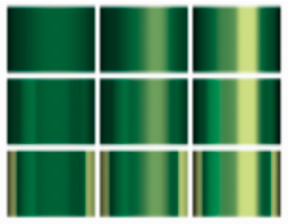
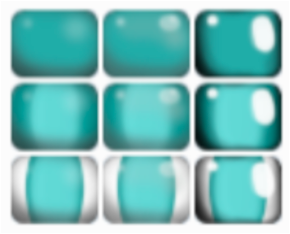
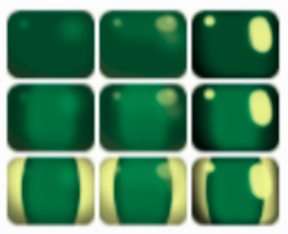
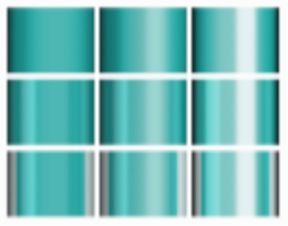
This gives an idea of how different bead finishes appear within the app. For each diagram, the first line is opaque, the second line is transparent, and the third line is transparent with inner color.
Round beads, no tint
Matte | Semi-gloss | Gloss
Round beads, yellow tint
Matte | Semi-gloss | Gloss
Cylinder beads, no tint
Matte | Semi-gloss | Gloss
Cylinder beads, yellow tint
Matte | Semi-gloss | Gloss